PDF Signing
Model Driven App
The Smart Tagging and PDF e-signing feature within Practice Gateway is designed to enhance the system’s templating functionality by incorporating dynamic information and enabling effective e-signing, with documents using these features surfaced through the Document Approvals section. This guide will also include instructions on how to send a document for multiple signatures, using PDF signing to ensure that each signer can apply their signature electronically in the defined order, and once all signatures are collected the final signed PDF will be stored securely within Practice Gateway.
Document Approval
A Document approval which requires a signature can be created for two scenarios.
- The signature is required from the contact who logs into Practice Gateway
- The signature is required from contacts with Data Approver connections to a contact.
Once a Document Approval record has been created (it must be kept in draft status to prevent it being shown to the contact before the PDF signing agreement has been generated). The document that requires signing must be uploaded; this file must already be in .pdf format.

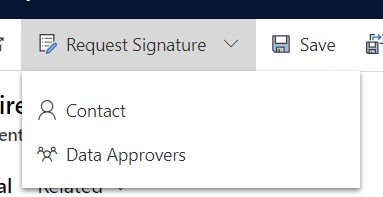
Once the PDF file has been uploaded, select the Request Signature drop down button from the command bar. This will then have 2 options. Contact and Data Approvers.
-
Selecting Contact will create a PDF Signing agreement for the contact, and will then set the Document Approval Status Reason to Signature Required. This process can take up to 30 seconds to perform.
-
Selecting Data Approvers will create a PDF Signing agreement for all Data Approvers connected to the Contact depending on the Service Line that has been selected for the Document Approval.
If a Document Approval is sent to a Contact, then any Data Approvers will not be able to access the Document Approval to provide a signature.
And if the Document Approval is sent to Data Approvers, then if the contact logs into Practice Gateway, they will not be able to access the Document Approval to sign it.
For example. Document Approvals under the Business Tax service line will be sent to all Business Tax – Data Approvers. But Document Approvals will be sent to all connected contacts with a valid Data Approver connection. This will require all of the Data Approvers to sign the same document.
They will each receive their own link through Practice Gateway.
Once the agreement has been generated in Adobe Sign, an Agreement ID will be present on the Admin Form.
The Document Signer field will be populated with the contact who is able to sign the Agreement.

In cases where multiple Data Approvers are needed to sign an agreement, multiple Document Approval records are created under the original Contact, with the Data Approvers marked as the Data Signer.
List
Creating a Document Approval which requires a signature is done in the same way in a list. Once the members list has been populated and a .pdf file has been uploaded, selecting the Request Signature drop down button presents two options:
- Individual Signature
- Multiple Signatures
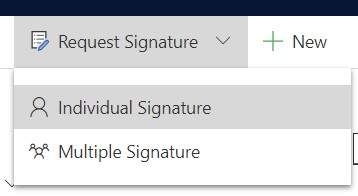
Individual Signature will generate an individual Document Approval and Adobe signing agreement for each contact in the list. They will only be able to sign their own document approval.
Multiple Signature will generate a single Adobe signing agreement, and each contact will have a Document approval linked with that single agreement. Each contact who goes to sign the shared agreement will be able to see who else has already or still needs to sign the document.
If a PDF file is uploaded to the Document Approval or List after the contact’s signature has been requested, this will NOT add the pdf file to the Adobe sign agreement.
Portal
Contacts that the logged in contact is connected to are now displayed as navigation buttons instead of a list

The Approvals for a contact are now separated into each Service Line. The Service lines are:
- General
- UK Tax
- US Tax
- Partnerships
- Business Tax
- Payroll
- Trusts
- Research And Development
Service Line buttons are only displayed for a contact when they have a Document Approval categorised by that Service Line

Within each Service Line the Approvals are split out by their Status. The Status’ displayed on Practice Gateway are:
- Signature Required
- Approved
- Awaiting Approval
- For Information
- Rejected
Lists of the Approvals are only displayed when a approval is within that status for the contact. E.g. if all Approvals that are awaiting approval have been either Approved or Rejected, the Awaiting Approval list will no longer be displayed.

Signing
When a Document Approval requires signing, the Approval Details page will display a link to Adobe sign where the PDF can be signed.
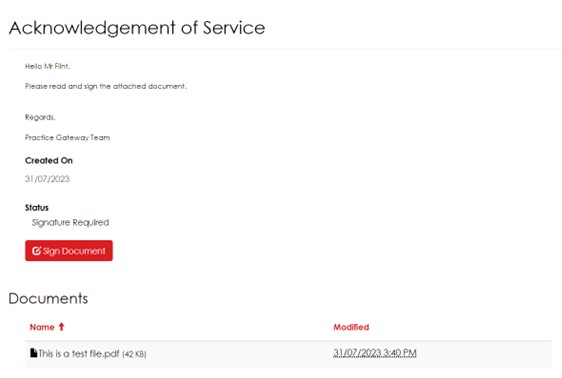

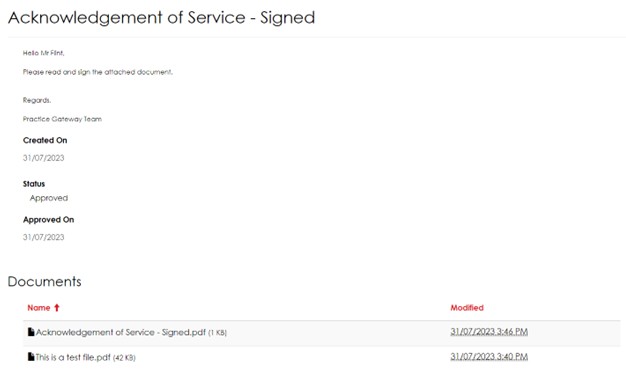
Once the Approval has been signed by all required parties it is updated in Practice Gateway, this renames the Approval to “Existing Name – Signed”, sets the Approval to “Approved”, and sets the Approved Date for when the final signature had been applied. The signed copy of the PDF is stored within the Approval so that contacts can reference it later.
Connections
Connected Contacts are only able to see Approvals within the Service Lines that they have a connection for. For example, a contact with a Business Tax – Data Provider connection will only be able to see the General & Business Tax service lines. Granting a contact multiple connection types will grant them access to multiple service lines.

For connected contacts, the lists have been upgraded so they function the same way as lists in other areas of the portal. This removes the need for the additional ‘edit icon’ and allows them to click directly through to the Approval by selecting its name.
If multiple Data Approvers need to provide their signature for an Approval, they will only be able to access the Adobe Sign URL through their own link in the Document Approval. Once all Data Approvers have signed the Approval. A Single record will be displayed in Approved and will contain the finalised signed PDF.